Posted by Nizar Jallouli
Wednesday, March 9, 2016
1 comment
this is a software issue, so many peaple have the same issue and
hardly any ones got the solution. here is what to do, for this to work
you need to be jailbroken, go to cydia and download a program called
IFILE. when you have downloaded this program open it and go to
>SYSTEM >LIBRARY >LAUNCHDAEMONS, scroll down the list and find a
file called, com.apple.iapd.plist, when you have found this file MAKE
SURE it is the exact file. swipe across it and when you see delete press
it to delete it. double press the home button and close ALL. apps in
multi tasking. now reboot your devise. YOUR PROBLEM WILL BE OVER. I have
solved my issue on my iphone 4 running 5.1.1 firmware
Don’t panic! The blank screen on your iPhone 3G, 3GS, 4 iPhone 5s and 6 can be fixed, easily!
Fortunately, I worked out that you can fix this problem by resetting your phone. Here’s how:
Press and hold down the Sleep/Wake button and the Home button simultaneously for at least 10 seconds.
The screen will clear out and then the Apple Logo will appear on the
black background. When the logo appears it means that the reset is done.
Afterwards you’ll see your screen light up and you’ll be able to breath a sigh of relief!
What you will need is the original IPSW Image from Apple or 4.2.1 or 4.3.3
A Custom Restore Image 4.3.3 IPSW if you have lost your own, one is filed here with a prefix of NO_BB so it will preserve your existing baseband.
Get the latest Redsn0w – RedSn0w — Mac is 0.9.9b7.zip and Windows is 0.9.9b7.zip
1) Make sure iTunes is not running.
1) Launch redsn0w > Browse – select the original Apple Restore Image IPSW – iPhone2,1_4.2.1 or iPhone2,1_4.3.3
2) Select your correct model according to the Serial Number – let redsn0w parse the image
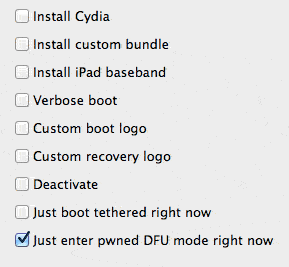
3) Select only “Just enter pwned phone in DFU mode right now“
Put iPhone into DFU mode using redsn0w
4) Follow the steps in redsn0w to get the iPhone 3GS into DFU mode which is going to send the screen to black
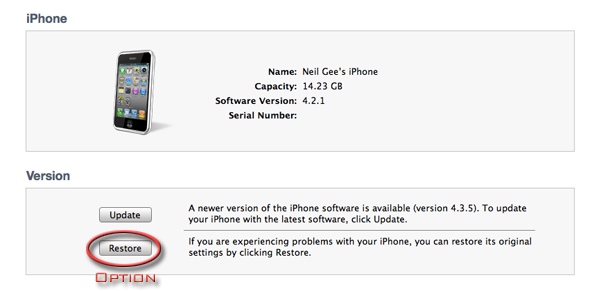
5) Launch iTunes, hold the shift/option key whilst
clicking on “Restore”, then navigate and choose the custom restore –
either your own or the downloaded one that starts with NO_BB (which
preserves the existing baseband).
Option/shift click restore to restore iphone from custom IPSW
6) Say a prayer
7) You should now boot up to a familiar screen, happy days!
8 ) Restore data from iTune backup.
To Re-Jailbreak
1) Launch redsn0w this time selecting the original Apple restore
image – iPhone2,1_4.2.1_8C148a_Restore.ipsw, or
iPhone2,1_4.3.3_8J2_Restore.ipsw and only select the option to
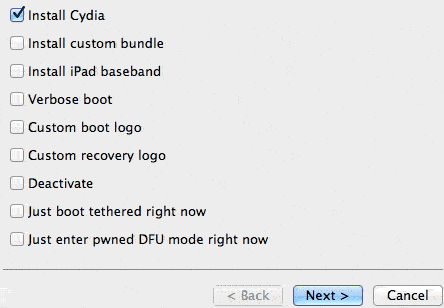
“Install Cydia”.
Install Cydia from redsn0w to jailbreak iPhone
2) It will need to enter DFU mode again, follow the steps and the
screen goes black, and then the jailbreak process begins, unix
flying bash code and running pineapples.
3) iPhone reboots – install ultrasn0w from Cydia to re- jailbreak the device.
Posted by Nizar Jallouli
Sunday, October 16, 2011
0 comments
With the release of iOS 5 things have been very busy! This didn’t stop the iPhone Dev-Team from releasing an update for RedSn0w bringing RedSn0w to version 0.9.9b5. In this new version of RedSn0w (for Mac OS X users only at this time) you can Jailbreak iOS 5 in only a few clicks. Follow the how to guide below to Jailbreak tetheredthe iPhone 4 and iPhone 3GS running iOS 5 (official version) on Mac OS X. Step 1: Download RedSn0w 0.9.9b5 for Mac OS X using the downloadmirror below Mirror #1: RedSn0w 0.9.9b5 (Mac OS X) Step 2: Once you have downloaded RedSn0w version 0.9.9b5 you will need to launch it by double clicking on the redsn0w app. Step 3: With RedSn0w up and running you will then click the Jailbreak button.
Step 4: Click the Next button and you will come to a screen where you will need to put your iPhone into DFU mode. Read through and follow the instructions presented to you which is to plug in and power off your iPhone and click the Next button.
Step 5: When you click the Next button you will need to follow the instructions presented to you to put your iPhone into DFU mode.
Hold down Power (corner) button for 5 seconds.
Without releasing the Power button, also hold down the Home (bottom center) button along with the Power button for 10 seconds.
Without releasing the home button, stop holding down the power button for up to 15 seconds.
Step 6: After you successfully enter DFU mode RedSn0w 0.9.9b5 will now prepare the jailbreak data. Once RedSn0w is done ensure the “Install Cydia” option is checked and click the Next button.
Step 7: RedSn0w will begin jailbreaking your iPhone. DO NOT interrupt or use your Mac during this time. When your iPhone is finished being jailbroken it will reboot into a jailbroken state. Congratulations! Optional: Booting Tethered - When you Jailbreak your iPhone running iOS 5 (official version) you will have a tethered Jailbreak. Meaning in order for your iPhone to turn back on you will need to boot it using RedSn0w (this applies every time your iPhone looses power). To do this launch RedSn0w again and click the Extras Button > then click the Just boot button and you will need to put your iPhone into DFU mode again.
Note: Yes, you need to do this every time your iPhone looses power.