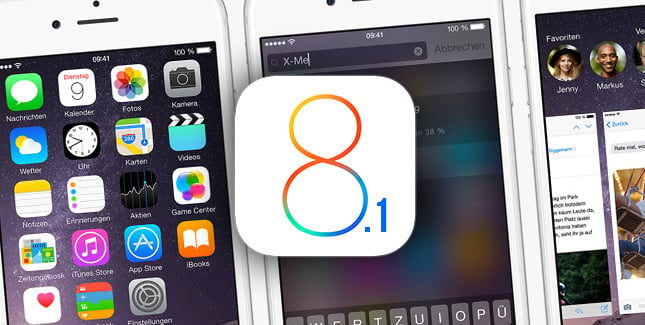
Showing posts with label Update. Show all posts

skype update for iphone 6 and iphone 6 plus big screens


Microsoft has updated Skype for iPhone by switching to version 5.6. With this updated version of Skype will be compatible with all screen smartphone Apple's iconic sizes. This includes the 3.5-inch screen with resolution of 320 x 480 pixels of the original Apple iPhone, and the screen is 5.5 inches with the resolution of 1080 x 1920 pixels of the iPhone 6 More Apple . Of course, screens 4 inches of iPhone 5, iPhone 5S and 5C Apple iPhone are all in this new update and it's rather good news. With the update in question, Skype users who have the iPhone 6 or iPhone 6 Plus will be able to see more recent posts.

By posting more instant messages in a conversation, Skype users will be perfectly able to keep in touch with their families and loved ones quickly and easily. The latest version of Skype for iPhone is now available in the App Store. She is waiting for you!

iOS 8 Problems for iPhone 5 and 4S: Tips to Deal


It has been about a month since Apple rolled out its new operating system for iPhones, iPads, and iPods but it seems like many have still not switched over to the newer version for a number of reasons. There were initial reports of many kinds especially the ones that asked for around 5 GB of free storage space on the device before the installation. Although many of the users have got past those troubles, it seems like many still need to look into other issues.
iPhone 4S and iPhone 5 users are facing a majority of issues and that's why the adoption rate is lower than what was initially expected by the company. Most of 4S users said that they had initiated the upgrade process but as it was taking a lot of time, they cancelled it in between. As a matter of fact, problems do not end with successful update. Battery drain, network issues, and inability to answers calls are just few of the problems that new iOS 8 users have reported across the Apple complaint forums all across the world.
So what is the best way to deal with these iOS 8 update issues for iPhone 4S and 5? It is clever to initiate the update during night time by connecting iPhone to iTunes on your computer. This way, only 1 GB of storage space on phone will be enough. Keep the battery charged before the process and expect the update to take at least a couple hours depending on your internet speed. Once it is complete, spend some time exploring the system.
Do not install apps that do not serve any purpose to save battery. Also manage the power by adjusting screen brightness, timeout and 3G network. Although Apple has rolled new updates and bug fixes for most of the problems, Bluetooth seems to be a common problem with almost no solution. That functionality may suffer for a few days but Apple plans to come up with another update in less than two days. Many experts also believe that if you haven't upgraded yet, wait for at least a couple of days for new updates.

Prevent iPhone4 Baseband Update


UPDATE: This method WILL work for iPhone 4 RESTORING to 4.3
This page ONLY deals with iPhone 4 baseband protection. I'm sorry this will not work for any other device.

You can protect your iPhone 4 BB restoring to iOS 4.2.1. Follow these steps exactly:
  1. Get the latest TinyUmbrella.
  2. Get the latest greenpois0n rc5 update (http://greenpois0n.com)
  3. Open TinyUmbrella
  4. Plug in your device and save SHSH (make sure 4.2.1 SHSH were saved, if not don't bother continuing)
  5. Start TSS Server (If you get errors read the help section or FAQs or comment below typically it fails because you have some kind of web sharing enabled... use google to fix it - your issue really not much I can do...)
  6. Open iTunes
  7. Select your device in iTunes
  8. Shift(windows) / Option(Mac) restore -> Select the 4.2.1 ipsw
  9. Restore SHOULD error with a 1013 error. Click the "ok's" and close iTunes.
  10. With your device sitting with the usb pointing to iTunes (recovery mode), enter DFU by pressing and holding HOME + POWER until your screen goes black... then after a count of 2 (1.5-2 seconds) let go of POWER but keep holding HOME. If all goes well you will see nothing but a black screen. If your timing is even a LITTLE bit off, you will see the apple logo and your phone will boot back into recovery mode... Go back to step 10 and try again.
  11. You're now in DFU mode. Start greenpois0n and press 'Jailbreak'
  12. Once greenpois0n has finished its thing. Press 'Complete!'
  13. Let your device restart. You should end up on the activation screen.
  14. Congrats your baseband was preserved and you are now on 4.2.1
  15. Put your device into DFU mode and then click 'Fix Recovery'
  16. Click 'Yes'
  17. Your device's screen will turn white and you'll see debug boot information.
  18. Eventually your device will boot into the activation screen.
  19. Congrats. You're on 4.2.1 (again)? :)
If you get a 16XX error then try entering DFU and go to step 5.
If your restore does NOT end in a 1013, it means your baseband was updated. This is likely because you did not have the TSS server running OR you updated without TinyUmbrella OR you are working with a device OTHER than iPhone 4.